Showing posts with label Android. Show all posts

Tuesday, January 29, 2013

Remote Web Desktop 5.9.5 Released

Minor imporvement in 5.9.5

✔ Add hang up button on Contact window
✔ Add auto start on power/dock
✔ Fixed IP display issue when using Tethering & portable hotspot

Long time no update is because my pretty baby released :), now I am back. Sorry for the inconveniency.

Thursday, March 22, 2012

Remote Web Desktop & AD Blocker Marked "Safe" by Appoozle

App AD Blocker and Remote Web Desktop have been promoted to "Safe" by Appoozle Rating.

Remote Web Desktop


Appoozle Safe


AD Blocker


Appoozle Safe

Thursday, May 26, 2011

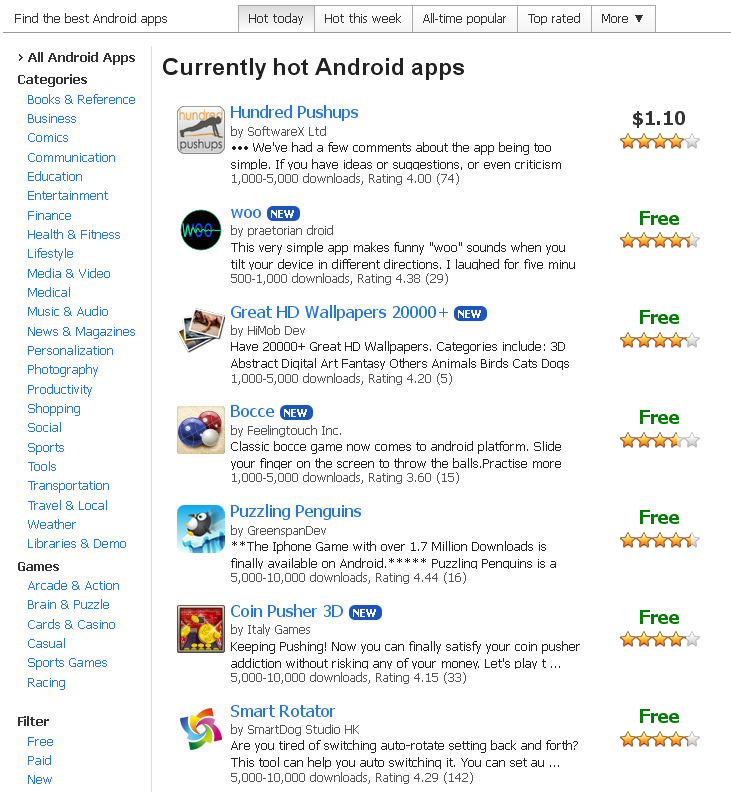
Smart Rotator became the top 10 hottest apps on AppBrain

This morning, AppBrains mailed me that "Your Android app 'Smart Rotator' is now one of the top 10 hottest apps on AppBrain (http://www.appbrain.com/), the website where people find, install and share Android apps." Thanks for every user's support.

At the same time, lifehacker.com and addictivetips.com provide a good review for it, thanks for theirs hard work:


Saturday, April 9, 2011

Recommend a Secret SMS App -- Shady SMS

I just found this app lask week, it's a completely secret SMS messager, and it's defenitely the best one among the similar applications. One of the biggest highlight is the guest user even don't know it exists in your phone. The only way to open Shady SMS is dial 123 or 321 in your telephone and press call. Of course, you can change the number. You can find this app through the following link:

https://market.android.com/details?id=com.project.memoryerrortwo


It's a real genius idea, so I "steal" this idea and apply it to my App Locker II application, then released a new application named "Invisible Protector II". Author Noah is a so kind man and he agreed me to do that. So I want to say thanks to him here again and highly recommend his applications to all my users.

John

Friday, April 8, 2011

Purchase My Android Apps by Paypal

If you can't buy my android apps through Android Market, you can download the free version app and pay it through the following PayPal links:

Remote Web Desktop
http://smart-dog.appspot.com/donation_remote_mobile.html

App Locker II / Invisible Protector
https://www.paypal.com/cgi-bin/webscr?cmd=_s-xclick&hosted_button_id=94L22UXWM5TS4

AD Blocker
https://www.paypal.com/cgi-bin/webscr?cmd=_s-xclick&hosted_button_id=6SBG3TAY48SGC

Note: Please type the Production Code inside the additional message box during payment. Of course don't worry if you forgot it, I will send mail to you ASAP.

Thursday, April 7, 2011

USB Connection & Capture Serivce Guide for Remote Web Desktop (Windows)

This document is a simple guide for how to connect it Remote Web Desktop with USB connection and how to enable the screen shot feature on non-rooted phone.

Download ADB Tool

Please click the following download link to download the ADB tool and USB driver, and extract it to your local drive. I assume you extract it to X:\ADB_WIN/ for convenience.

ADB Tool (Windows)

Installing the USB Driver for Windows

If you already installed the USB driver for your Android phone, please ignore this steps.

More OEM USB drivers can be found here:
http://developer.android.com/sdk/oem-usb.html

Windows Vista

To install the Android USB driver on Windows Vista for the first time:
  1. Connect your Android-powered device to your computer's USB port. Windows will detect the device and launch the Found New Hardware wizard.
  2. Select "Locate and install driver software."
  3. Select "Don't search online."
  4. Select "I don't have the disk. Show me other options."
  5. Select "Browse my computer for driver software."
  6. Click "Browse..." and locate the folder where you extracted the ADB tool package (X:\ADB_WIN\usb_driver\). As long as you specified the exact location, you may leave "Include subfolders" checked or unchecked—it doesn't matter.
  7. Click "Next." Vista may prompt you to confirm the privilege elevation required for driver installation. Confirm it.
  8. When Vista asks if you'd like to install the Google ADB Interface device, click "Install" to install the driver.

Windows XP

To install the Android USB driver on Windows XP for the first time:
  1. Connect your Android-powered device to your computer's USB port. Windows will detect the device and launch the Hardware Update Wizard.
  2. Select "Install from a list or specific location" and click "Next."
  3. Select "Search for the best driver in these locations"; un-check "Search removable media"; and check "Include this location in the search."
  4. Click "Browse..." and locate the folder where you extracted the ADB tool package (X:\ADB_WIN\usb_driver\).
  5. Click "Next" to install the driver.

Turn on USB Debuggin on Phone Side

Go Menu > Setting > Appliations > Development, and turn on "USB debugging" option:


    Connect Remote Web Desktop through ADB Tool

    1. Open Remote Web Desktop on your phone side, specify a port (e.g. 8999) for it.
    2. Click 'Start Server' button to start the Web Desktop server. And it will show status text such like 'Open http://xxx.xxx.xxx.x:8999 in browser'.
    3. Connect your Android phone to your computer's USB port.
    4. On your computer, go to X:\ADB_WIN\, double click to run connect.bat, input the port you specified in Remote Web Desktop, then it will prompt you visit 'http://localhost:port/ in your browser.


    5. Open browser and type the URL show above, you will get the Web Desktop.

    Install Capture Service for Non-Rooted Phone

    1. Connect phone to computer with USB.
    2. On your computer, go to X:\ADB_WIN\, double click to run install_capture_service.bat.
    3. You will get prompt message like the follwoing shot, then you can close it and un-plug your USB line, of course, you also can keep the USB connected, I just mean it can work without it.

    4. Login Remote Web Desktop, open Screenshot window, you can take screenshot for non-rooted phone now.
    5. Please notice that you need reinstall capture service agagin if you restart your phone.

      Wednesday, April 6, 2011

      SmartDog Studio Bloger Beta Released

      Hi All,

      I'm John, an Android developer. I have published more than 10 apps in the Android Market and own more than 200,000 users. Because I am so busy in developing new features of my apps, I don't have too much time to build a formal support site, so I will provide some support through this bloger.

      I will post the user guide, release notes and development progress here, and you can send feedback through my forum by click the right side "Feedback" link.

      Thanks,
      John